Packaging with flet pack
Instructions for packaging a Flet app into a standalone desktop executable
with flet pack — a lightweight,
PyInstaller-based alternative to
flet build. Users can run the packaged app without
installing a Python interpreter or any modules.
How it relates to flet build
Both commands are supported — they occupy different points on the speed-vs-control curve:
flet pack | flet build | |
|---|---|---|
| Targets | Desktop only: Windows, macOS, Linux | Desktop, mobile (Android/iOS), and web |
| Toolchain | PyInstaller | Flutter SDK (auto-installed) |
| How the app runs | Your Python code alongside the prebuilt Flet desktop client | Flutter-compiled app with Python embedded, running in-process |
| Python dependencies | Discovered by PyInstaller's static analysis of your imports | Installed in full from your declared app dependencies |
| Build time | Fast — no native compilation | Slower — a full Flutter build |
| Customization | Icon and executable/bundle metadata | Everything: icons, splash, build template, signing and store packaging |
Reach for flet pack when you want a desktop artifact quickly; use
flet build when you target mobile or web, or need deeper
customization.
Like PyInstaller itself, flet pack is not a cross-compiler: run it on each
OS you target — CI makes this painless.
Prerequisites
PyInstaller powers the packaging and must be installed first:
pip install pyinstaller
Packaging
From the directory containing your program, run:
flet pack your_program.py
The packaged app lands in the dist folder
(--distpath changes that): a single-file executable
on Windows and Linux, or a .app bundle on macOS. Pass
--onedir for a one-folder bundle instead of a
single file (macOS always produces a .app bundle). Try running it:
- macOS
- Windows
- Linux
open dist/your_program.app
dist\your_program.exe
dist/your_program
By default the executable or bundle is named after the Python script; change
it with --name:
flet pack your_program.py --name bundle_name
If non-empty build or dist folders remain from a previous run,
flet pack asks before deleting them — pass --yes to skip all prompts
(useful in CI).
To distribute, zip the contents of the dist folder and hand it to your
users — they don't need Python or Flet installed to run it.
Custom icon
Set the icon with --icon:
flet pack your_program.py --icon your-icon.ico
Provide the icon in the target platform's native format: .ico on Windows and
.icns on macOS. It is applied both to the outer executable and to the embedded
Flet viewer, so the app window, Dock/taskbar entries, and the executable itself
all match.
Linux has nowhere to put an icon inside an executable — the desktop reads it
from an installed desktop entry. Pass a .png and flet pack writes both the
entry and the icon for you to install; see
Linux taskbar identity.
Linux taskbar identity
flet pack launches the shared, prebuilt Flet client, so without help every
packed app reaches the taskbar under that binary's name — grouped together and
labelled flet. To avoid that, the app is relaunched under its own identity
(see FLET_APP_ID):
--bundle-id when you pass one, and
otherwise the executable's name.
--bundle-id also lets you choose that identity rather than inherit it from
the executable's name, which is worth doing if the executable is named
something a desktop entry should not be keyed on — a versioned my-app-1.2.3,
say.
That gives the app its own taskbar group and label. Its display name and
icon come from somewhere else: a desktop entry, which the desktop matches to
the window through StartupWMClass. flet pack writes one next to the
executable — along with the icon, if you passed a .png to --icon:
dist/
  my-app                    the executable
  com.example.my_app.desktop
  com.example.my_app.png    only when --icon is a .png
Name= comes from --product-name
(falling back to the executable's name) and Comment= from
--file-description. Nothing is
installed for you, because installing would change your application menu as a
side effect of building. Copy the two files into place yourself and refresh the
caches:
cp dist/com.example.my_app.desktop ~/.local/share/applications/
update-desktop-database ~/.local/share/applications

# only if you passed --icon with a .png
mkdir -p ~/.local/share/icons/hicolor/256x256/apps
cp dist/com.example.my_app.png ~/.local/share/icons/hicolor/256x256/apps/
gtk-update-icon-cache -f -t ~/.local/share/icons/hicolor
Exec=The entry points at wherever flet pack built the binary, since that is the
only location known when it is written. If you install the executable
somewhere else — /opt, ~/.local/bin — edit Exec= to match:
sed -i 's|^Exec=.*|Exec="/opt/my-app/my-app"|' ~/.local/share/applications/com.example.my_app.desktop
flet build package itflet build linux compiles a runner per app, so the identity is
built in rather than applied at launch. Reach for it if you would rather have
packaging handled than assemble it yourself.
Including assets
If your app uses assets, include them with
--add-data, in the form source:destination:
flet pack your_program.py --add-data "assets:assets"
The option can be repeated to include multiple files or folders.
Executable and bundle metadata
Details shown by the OS about your app can be customized.
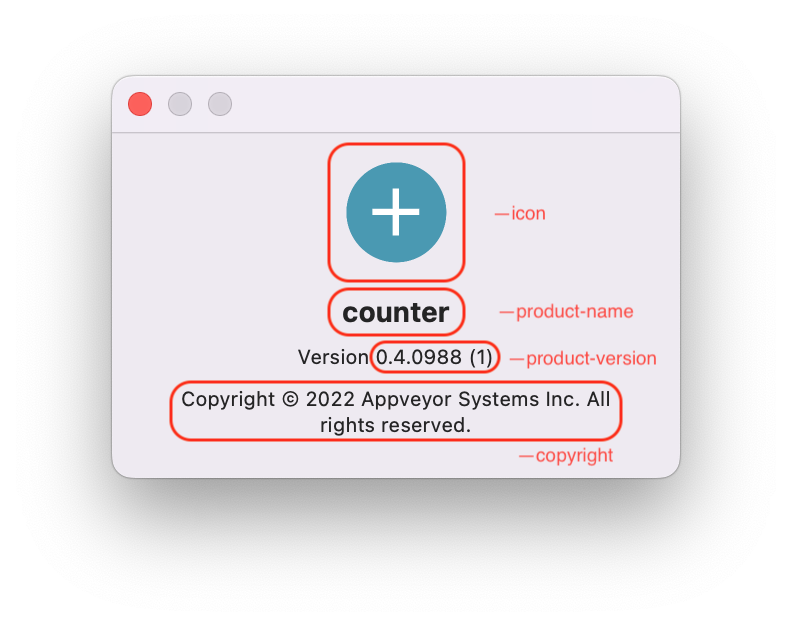
On macOS — the "About" dialog and Dock/Activity Monitor entries of the bundle:
--product-name— display name of the bundle.--product-version— version shown in the "About" dialog.--copyright— copyright notice shown in the "About" dialog.--bundle-id— unique bundle identifier.
On Windows — the executable's "Details" properties dialog:
--product-name— "Product name" field.--product-version— "Product version" field.--file-version— "File version" field, inn.n.n.nformat.--file-description— "File description" field, also the program's display name in Task Manager.--company-name— "Company name" field.--copyright— "Copyright" field.
Like the icon, the metadata is embedded into both the outer executable and the Flet viewer inside it.
More options
--hidden-import— add modules that are imported dynamically and therefore missed by PyInstaller's static analysis.--add-binary— bundle additional binary files.--debug-console1— keep a console window with Python output open, for troubleshooting the packaged app.--uac-admin— request elevated permissions on start (Windows).--codesign-identity— sign the app bundle (macOS).--pyinstaller-build-args— pass any other argument straight through to the underlyingpyinstallercommand.
The full option list is in the flet pack reference.
Packaging in CI
Since each OS must package its own artifact, a CI matrix produces all three in one go:
name: Pack Flet App

on:
  push:
  workflow_dispatch:

jobs:
  pack:
    name: Pack on ${{ matrix.os }}
    runs-on: ${{ matrix.os }}
    strategy:
      fail-fast: false
      matrix:
        os: [windows-latest, macos-latest, ubuntu-latest]

    steps:
      - name: Checkout repository
        uses: actions/checkout@v6

      - name: Setup Python
        uses: actions/setup-python@v6
        with:
          python-version: "3.14"

      - name: Install dependencies
        run: pip install flet pyinstaller

      - name: Pack app
        run: flet pack your_program.py --yes

      - name: Upload artifact
        uses: actions/upload-artifact@v7
        with:
          name: your_program-${{ matrix.os }}
          path: dist
Troubleshooting
| Symptom | Cause and fix |
|---|---|
ModuleNotFoundError inside the packaged app only | The module is imported dynamically, so PyInstaller's static analysis missed it — repackage with --hidden-import <module>. |
| The packaged app exits or misbehaves with no visible error | Repackage with --debug-console 1 to get a console window showing Python output and tracebacks. |
macOS: "App" is damaged and can't be opened on other Macs | Downloaded apps must be signed and notarized for Gatekeeper to run them. Sign the bundle with --codesign-identity, then notarize and staple it — the Notarization section explains the concepts and commands, which apply to any signed app. flet build macos automates this entire chain. |